Showing posts with label Windows 7. Show all posts

Saturday, September 5, 2009

Adding Pictures to the Windows Desktop Backgrounds in Windows 7

If you like the default Windows 7 backgrounds, but you want to add more pictures to that collection, here is a simple solution:

The Windows Desktop Backgrounds are located in the folder C:\Windows\Web\Wallpaper. You can simply create a new folder and place your images under it. Here is an example for a new “Chipset” folder:

Background1

The folder in Windows Explorer

Background2

The new pictures in the default Windows Desktop Backgrounds

Upgrading from Windows 7 RC to Windows 7 RTM

So, the time has come to upgrade to the final version of Windows 7. Out of the box, you cannot upgrade from RC to RTM. There is a simple hack that enables you to do so, but I decided I wanted a clean install. I still needed to retain my files and settings, and I needed to install Windows on the same hard disk, as the second hard disk contains Vista.

So, I decided to use Easy Transfer to make the transition. I ran Easy Transfer on Win7 RC. I’ve selected all the files and folders that I needed to retain, including program settings. The results was an 8GB file, which I saved on the second hard disk. Afterwards I booted using the Windows 7 RTM install DVD. I ran setup and chose the custom installation. I formatted the Win7 partition, and made a clean install on that partition.

After Windows 7 RTM was installed I ran Easy Transfer. I selected the Easy Transfer file which was created from the RC version, and after a few minutes all of my files and settings were back.

Now I still need to install of my applications. I’ve installed most of them already, and I still need to move files from my Vista installation (which wasn’t used at all since Win7 RC) to Windows 7.

That was an easy transfer!

Monday, August 17, 2009

Windows 7, Total Commander, Slow Network File Copy

I’ve upgraded to Windows 7 at work, and found out that Total Commander is really slow in network copy operations. When copying or unzipping any amount of files it frequently pauses and makes it impossible to work like this. After finding the usual advises from Vista, and seeing they are not working (Windows copy is OK, BTW), I tried something else. I’ve paused my Antivirus software, which is the new Kaspersky version for Windows 7. Total Commander started working correctly immediately. After playing with the Kaspersky settings a bit, it appears that Proactive Defense is causing this problem. The settings inside Proactive Defense don’t matter. If it’s activated, Total Commander pauses during copy operations.

Saturday, July 18, 2009

No Recording Device on Windows 7

A while back I wrote that Windows 7 didn’t detect the rear microphone input. Yesterday I tried the front microphone input, and found out that it didn’t work either, so I decided to get to the bottom of this, and was able to solve the issue. Here is the solution:

The problem was with the default Microsoft IDT High Definition Audio driver, which was obviously not compatible with my on board sound device (Intel® Desktop Boards with IDT audio). The Intel driver on the other hand, was only compatible up to Vista. I have tried to install it before, and it has broken the audio functionality on my machine. However, the breakthrough came after I found some advise on the web on how to install it anyhow.

I take no responsibility for the following steps, and they are provided “As is”, without any warranty whatsoever. They worked for me, but they may not work for others, and may cause problems.

1) Download the latest Intel IDT Audio driver. I downloaded mine from here. There is a list of motherboards that this driver supports, so read the list carefully to see if your motherboard is there.

2) After that, run the file that you downloaded (AUD_allOS_D20001.0x_PV_IDTGUI_v105_Legacy.exe). It will extract to a location of your choice, and then start to run setup. Cancel the setup.
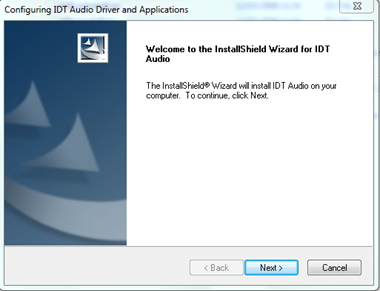
IDT_Step1

3) Go to the extracted folder, and then down to WDM and Vista. Find the two inf files, one is for 32bit, and the other for 64bit.
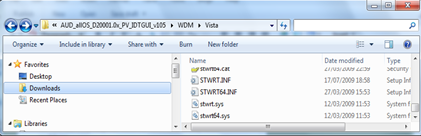
IDT_Step2

4) The following advice was found here, though I didn’t follow it to the word. I’ll tell you what I did, but I’m still giving credit to this post, as this was it.

I opened STWRT.INF. If you have a 64bit OS, you should open this: STWRT64.INF.

Went to the section [IDT.NTx86]. It has a lot of lines that look like this:

%ST.DeviceDesc%=STHDA,HDAUDIO\FUNC_01&VEN_8384&DEV_7680&SUBSYS_80860202

I modified them by removing the &SUBSYS_xxxxxx part, so that it will look like this:

%ST.DeviceDesc%=STHDA,HDAUDIO\FUNC_01&VEN_8384&DEV_7680

I did it for all the lines (used Excel to do this quickly).

5) I went back to the main extracted folder, right clicked Setup.exe, selected Properties, and set the compatibility mode to Vista Service Pack 2. I’m not sure it is needed, but I did this anyway.

IDT_Step3

6) I ran Setup, it asked me some questions, including if I was sure I wanted to install this driver. I approved all questions, and it took a long time, but finally it was complete, and I restarted Windows 7.

End result: the audio is working, the front microphone is working. The rear microphone input is recognized, but not working yet. I will try and solve it later, but at least I have a microphone now!


Monday, July 6, 2009

Windows 7 Problem Steps Recorder

Oh my god, what a cool feature! Just read about a very useful Windows 7 feature in How-To-Geek. Problem Steps Recorder (activate by Start->Run->psr.exe) records whatever you are doing into a zipped MHT file. The MHT contains screenshots of every step you have taken, with descriptions. Here are a few examples (without the screenshots):

Problem Step 1: (06/07/2009 20:20:02) User left click on "Minimize (push button)" in "Google Reader (334) - Windows Internet Explorer"

Problem Step 2: (06/07/2009 20:20:04) User left click in "Calculator"

Problem Step 3: (06/07/2009 20:20:05) User left click on "9 (push button)" in "Calculator"

There is also additional information for each step. Here is an example for Step 2:

Problem Step 2: User left click in "Calculator"
Program: Windows Calculator, 6.1.7100.0 (winmain_win7rc.090421-1700), Microsoft Corporation, CALC.EXE, CALC.EXE
UI Elements: #32770, CalcFrame, Calculator, CalcFrame

Now, why am I so excited about it? Well, as part of my job I sometimes have to troubleshoot issues that other people have. The best way to do this is to remote connect to their computer, but that’s not always possible. Seeing screenshots is the next best thing, but they don’t always know how to do this. With PSR, all I have to do is instruct them to run the program, and click on the big red record button, stop recording, and send a zip file. That’s a big help. Wonder if it can be ported out of Windows 7.

Monday, June 22, 2009

Windows 7 – No Rear Microphone Input Detected

Still trying to figure out the last issues I have with Windows 7. The most urgent issue is that the audio driver doesn’t recognize the rear microphone input, where my microphone is plugged. Obviously, this is a driver issue. I have an Intel board with IDT audio, so I tried checking Intel’s website. There is no audio driver for Windows 7, so I tried the one for Vista. The installation hanged for 10 minutes, and then I got a message that the installation failed. However, I could finally see the rear microphone input in the Recording Devices tab! Hurray! But wait a minute… No sound is coming out… No sound is coming in. Had to roll back to undo the IDT driver installation. Good thing there was a System Restore point close enough.

So now I’ve subscribed to my board’s RSS feed on the Intel website, waiting for an updated audio driver. For now I’ll have to plug the microphone in the front.

Update: The solution is here.

Friday, May 29, 2009

Windows 7 low memory footprint + Windows Live Writer bug

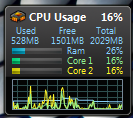
Here is my memory usage now:

CPU

With Vista I was at 50% without doing anything.

And here is something I’ve noticed in the newly installed Windows Live Writer:

WriterBug

I do have an idea about why it happens…

Thursday, May 28, 2009

Playing MKV or DivX using FFDShow in Windows 7

One of the main issues that I had with Windows 7, was playing MKV files. I've installed Haali Media Splitter and FFDshow. I've started playing an MKV file and noticed that they playback was choppy a bit. After further investigation I've noticed that the FFDShow video decoder doesn't appear in the tray, so I understood that FFDshow isn't used. I've searched for a solution for a couple of days. I've quickly learned that the problem is that Windows 7 comes with it's own codec for MKV, and even for DivX, and it doesn't let FFDShow take over, but it took me another day to get to the following solution.

A word of warning: The solution is involves renaming files in the Windows\System32 folder. It isn't an ideal solution, and can cause certain things not to work right. I assume that TV recordings using Media Center won't work, and DVD playback also wouldn't work. It may break other things as well, so I take no responsibility for this solution.

The main solution is posted here. However, besides renaming the following files:
MP4SDECD.DLL
MP43DECD.DLL
MPG4DECD.DLL

The ones above are needed to enable DivX to be decoded with FFDShow. I had to rename one more file to get FFDShow to play MKV files, and that's: msmpeg2vdec.dll

That's it, now MKVs play well, with FFDShow. Hope this post saves people some time finding the solution.

Saturday, May 23, 2009

Windows 7 RC

I have been busy at work lately, so had no time to write (or read my RSS feeds, or do other things I like to do), but I did hava a chance to return to Windows 7, and this time I had a separate hard disk, so I avoided the issues I had with the Beta. Overall, I'm very pleased with Windows 7. I did however have a few issues, and still have some other issues, and here they are:

Resolved issues
  • Anti virus: At first I installed AVG, but I felt it gave me no real security, so last night I installed Trend Micro. However, it seemed stuck, even after restart, and only showed as "Loading". Today I tried to uninstall it, and it didn't succeed. I had to use a restore point, to remove it. I now have Kaspersky 8 beta for Windows 7.

  • Creative Webcam: I have an older version. Windows didn't install a driver for it, and according to the Action Center (which is great BTW), Creative don't have a driver for it, but you can try installing the old driver in Compatibility Mode. I tried it last night, and it worked.

  • Playing MKVs: Windows 7 has it's own codec for MKV (H264). It's pretty bad. I had to rename a few DLLs to be able to disable the Windows codec, and use ffdshow instead (more about this, perhaps later).

Unresolved issues

  • Rear Microphone input: For some reason, the rear microphone input is not recognized, so my microphone is not recognized. I tried to check for an updated driver for Windows 7 for my Intel motherboard, but they don't have Windows 7 drivers yet.


I think this is it for now...

Thursday, February 5, 2009

Bye bye Windows 7

I’ve added a second hard drive, and instead of using the opportunity to install Windows 7 on a larger partition, I’ve decided to get rid of it altogether. I just didn’t feel safe to leave it on my main machine.

Saturday, January 31, 2009

Windows 7 – Internet Explorer instability

After being so satisfied with Windows 7, I’m now experiencing instability in Internet Explorer 8. IE8 crashes quite often, and not as nice as it should. The crashes are usually not limited to specific tabs. The entire application freezes, and I need to forcefully shut it down. A few errors are linked specifically to Google Toolbar 5.

Thursday, January 29, 2009

Minesweeper in Windows 7

Even Minesweeper was changed. You can now play with flowers instead of mines, using the Change Appearance command under the Game menu.

MS_Flower

Wednesday, January 28, 2009

IE8 add-on needs IE8. In IE8

I’m using Internet Explorer 8 on Windows 7. I tried to install an add-on using the “Get More Add-ons” Window. IE8 insisted that I should download IE8 first. Don’t believe me? See for yourself:

ie8needsie8

Sunday, January 25, 2009

Windows 7 Action Center not connecting

Having the same problem as noted below:

Action Center not connecting - Windows 7 Forums

Action Center is finding a solution to a crash, I get the message "Contacting Autobug Web Service", and then "cannot display the webpage". Not too much information on Google about it.

Still using Windows 7

I’m very happy with it. It’s becoming my number one OS, although, because of disk space limits on that partition, I cannot install most of my software there. Still, it’s enough for internet, and media center.

Saturday, January 24, 2009

Windows Solution Center

I just had a message that “Distributed Link Tracking Client” caused an error. I chose to send the error information to Microsoft. Surprisingly, a few minutes after, I got a message back with a possible solution. Alas, I couldn’t see the solution because “The program cannot display the webpage”. Well, it’s the thought that counts…

Tuesday, January 20, 2009

Windows 7 Media Center

Had a quick look at the Media Center. Looks kind of cool. I think I’ll start using it more, instead of the Vista one. It has nice Sports features, where you can get results of games, and track sport stars. It doesn’t interest me that much, but it looks kind of cool.

Saturday, January 17, 2009

AVG doesn’t like Windows 7 games

I’ve noticed that when I search for games on the Start menu, the machine almost freezes. Further investigations have shown that both CPU cores reach 100%, and even more investigations showed that the problem is with avgrsx.exe, AVG Resident Shield service. Now I need to find a solution.

Update: It appears this is not a Windows 7 issue, but rather a general AVG issue. I’ve installed Avira Antivir instead.

Friday, January 16, 2009

IE8: The killer browser in Windows 7?

I'm a Firefox user. In last couple of years I have always thought that the various Internet Explorers were rather slow and heavy, and Internet Explorer 8 was no different. Today, I installed Firefox on Windows 7, and as usual, I've set Firefox as my default browser. However, after a few minutes I understood that one of the main features of Windows 7 isn't working with Firefox, and I set Internet Explorer 8 as my default browser.

If you've read anything about Windows 7, you probably know about the "Aero peek", the feature that enables you to easily browse between open windows of the same application. With Internet Explorer 8, each tab is treated is a separate Window, and so, it is easy to browse between tabs. This feature is not available with Firefox.

IEAeroPeek

The second feature, which is a great addition, is the download progress. When you download files, you see a progress bar on the IE icon in the task bar. That way, you don’t have to check the download window each time.

IEProgress

A third feature is that when a tab crashes, it doesn’t bring down the entire IE session. Only the tab crashes, and then restarts in the same location!

So, IE is now my default browser. The only thing I really miss is the spell checker.

My experience with Windows 7 so far

So, I've installed Windows 7 last night. I had to repartition my machine, so that I could dual boot with Vista. I repartitioned using Vista's Disk Management, which was quite easy.
The installation itself took about 20 minutes, which was very fast! My experience so far is very positive. I have played with it at work, but even with a few minutes of experience in day to day stuff, I already found out one cute UI improvement. When you download a file using IE, the IE icon on the new task bar turns partly green, to show the progress of the download. That way you don't have to check the download window to see how the download progresses. Here is how it looks like:

IEProgress

Anyway, I'll keep updating on my experience. Hope it will be positive all the way!